

MCP Connections
Connect a remote MCP server to make its tools available in Bunyan. MCP, or Model Context Protocol, is how a compatible external service exposes tools that Bunyan can use during a conversation.
You need the service's MCP server URL and its authentication requirements. Use the URL supplied for MCP connections, rather than the service's website address. Connect services whose tools and access requirements you understand.
Add a Connection
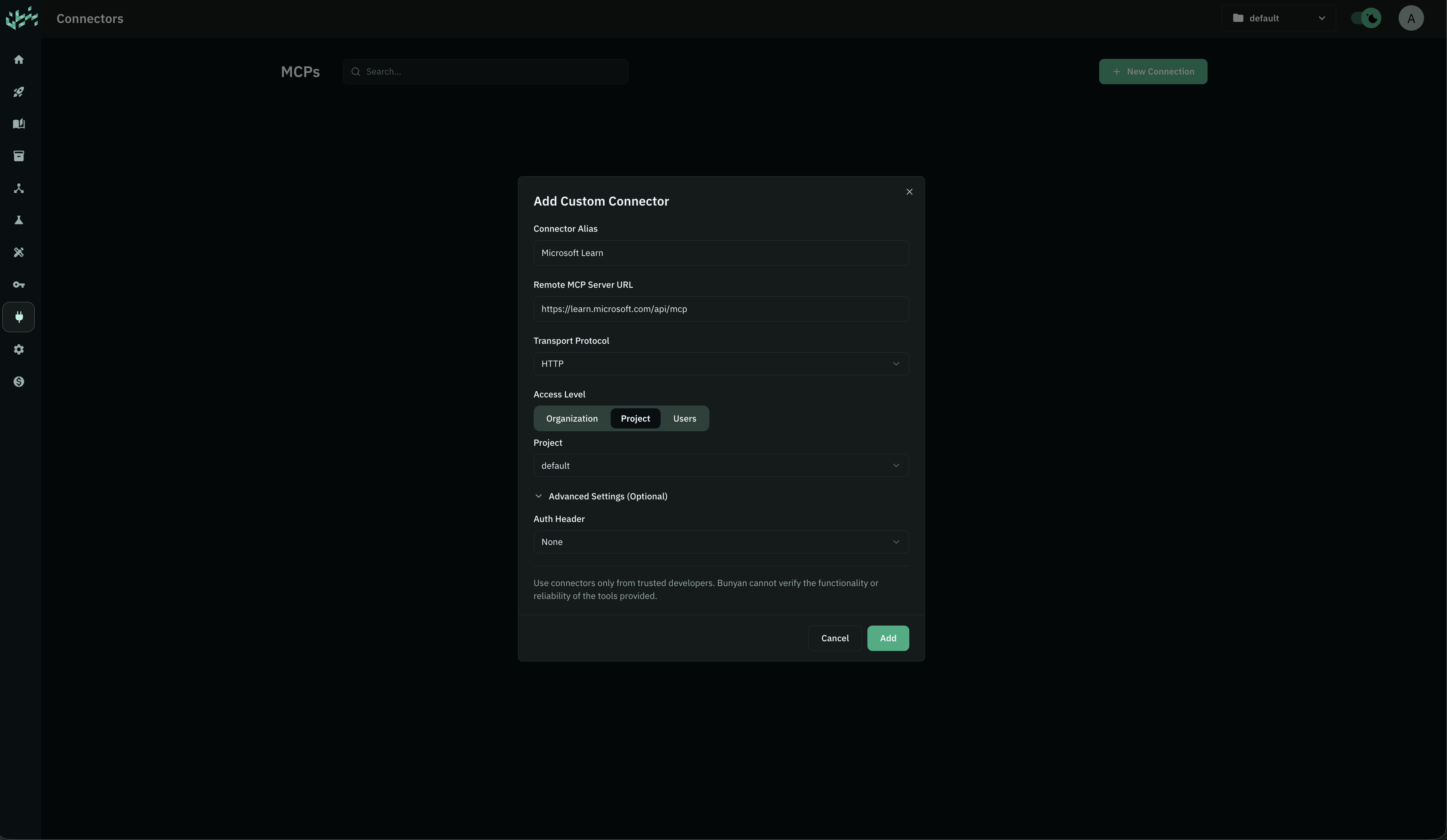
- Open MCPs in Bunyan and select New Connection.
- Enter a Connector Alias that helps you identify the service.
- Enter the Remote MCP Server URL supplied by the service.
- Set Transport Protocol to HTTP.
- Choose an Access Level: Organization, Project, or Users. For Project, select a project. For Users, select the people and their access roles.
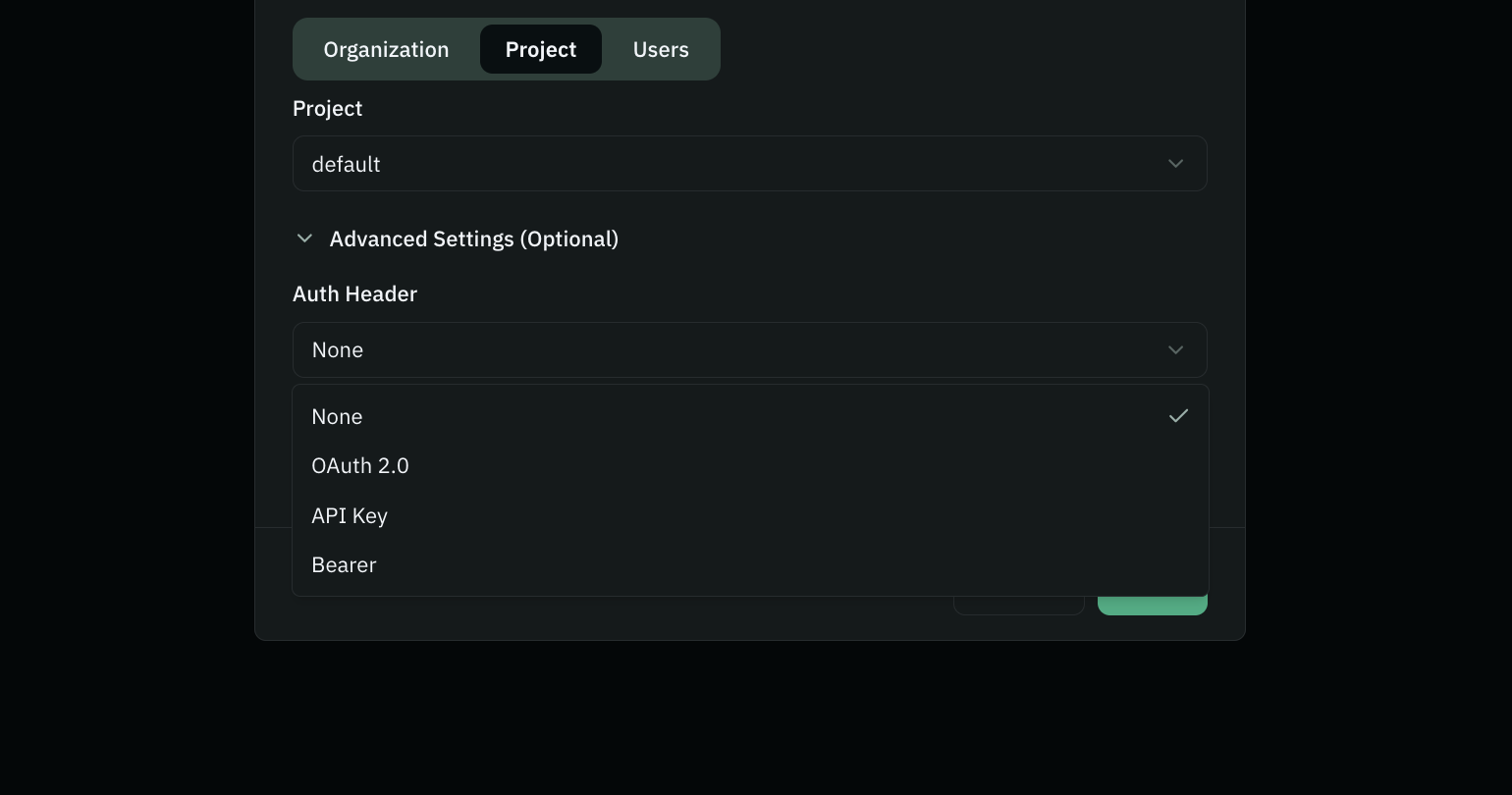
- Under Advanced Settings, choose the Auth Header option required by the service and enter the applicable credentials.
- Select Add. If authorization opens in a new tab, complete it and return to Bunyan.
Authentication Options
| Option | What to provide |
|---|---|
| None | Use for a service that does not require authentication. |
| OAuth 2.0 | Complete the service's authorization flow. The form also provides OAuth Client ID and OAuth Client Secret fields when supplied by the service. |
| API Key | Enter the API key issued by the connected service. |
| Bearer | Enter the access token issued by the connected service. |
Use the connected service's credentials for these fields. Your Bunyan API key is for Bunyan's public APIs.
For OAuth, Bunyan may open a new authorization tab. If your browser blocks it, follow the authorization link shown by Bunyan or allow the popup, then complete sign-in and authorization with the service.
Check the Connection and Tools
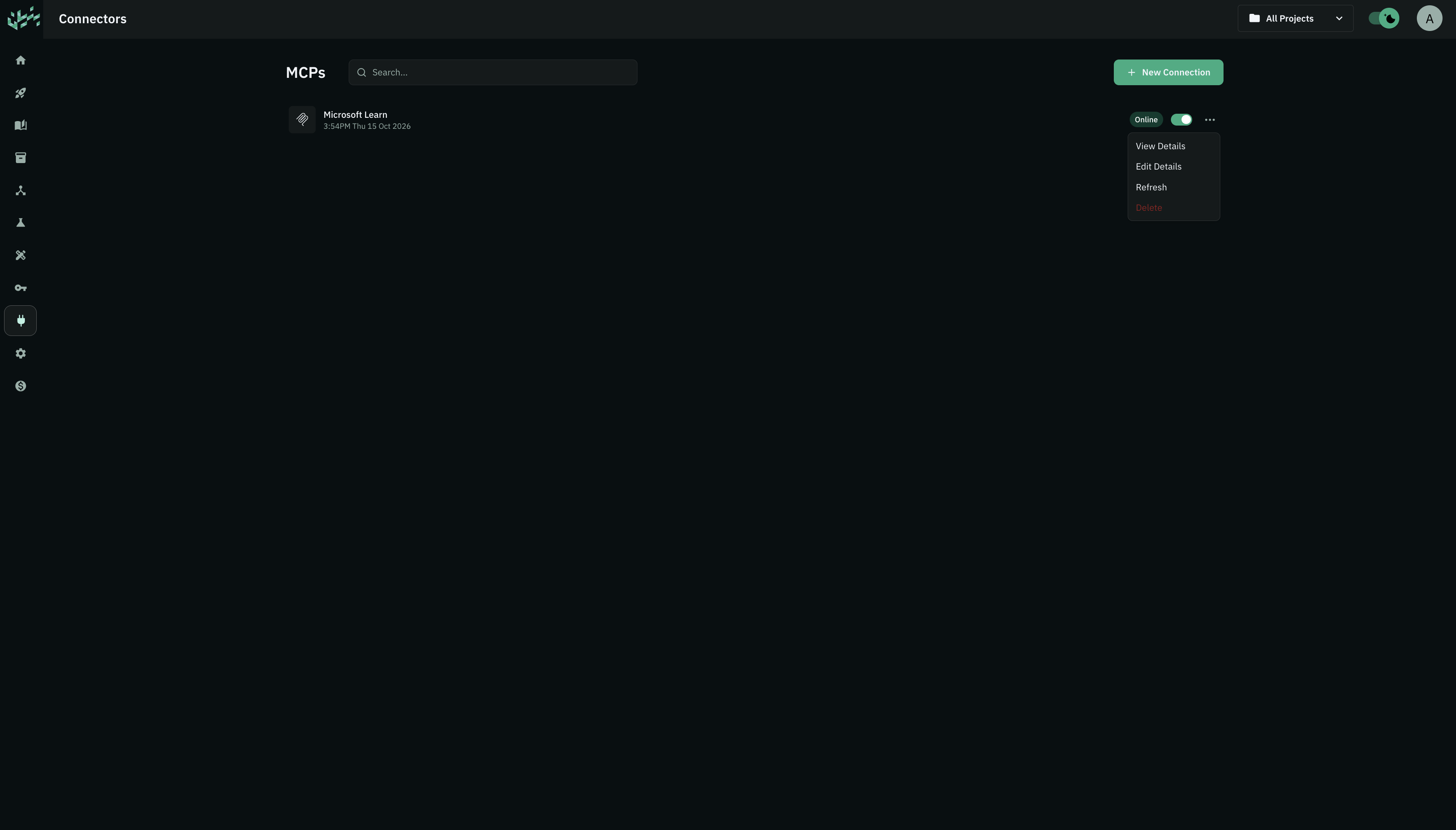
Select a connection to open its details. Bunyan checks the connection and displays its status, such as Testing, Online, or Offline. Select Refresh to run the check again.
The Tool Permissions section lists the available tools and their descriptions. Tools are grouped according to the information supplied by the server. Review these descriptions to understand which tools read information or change it.
If the connection needs authorization, use Re-Authenticate for an OAuth connection and complete the flow in the new tab. Refresh the connection after returning to Bunyan.
Control Who Can Access Tools
The connection's Access Level determines its audience:
| Level | Selection |
|---|---|
| Organization | Share within the organization. |
| Project | Select the project whose access should apply. |
| Users | Select people and assign Full Access, Editor, or Viewer roles. |
To change the connection's audience, open More actions → Edit Details, update Access Level, and select Save. Your permissions determine which changes are allowed. Organization Viewers cannot manage connections.
For an individual tool, select Change under its description. Choose Inherit to use the connection's access settings, or choose Project or Users to narrow access, then select Change to save. A tool's audience must fit within the connection's audience.
Use a Connected Tool in the Playground
- Open Playground and start or continue a conversation.
- Type
@to open the available tools menu. - Choose the MCP connection, then select one of its tools. You can search within the connection's tools.
- Describe the task and provide the information the tool needs.
For example, after selecting an available search tool:
Find the latest onboarding checklist and summarize the steps for a new team member.
Only tools available to you can be used. Their behavior and required information depend on the connected service. To reuse a tool selection with saved instructions, add it to a Blueprint.
Edit, Disable, or Delete a Connection
Use More actions → Edit Details to update the alias, server settings, credentials, or access level. Saved secrets are not displayed when editing; enter a new credential when you need to replace it.
In the connection details, use Disable to turn off the connection or Enable to turn it back on. To remove it, select Delete and confirm in the dialog. Management controls and actions depend on your permissions.
Troubleshooting
| Problem | What to check |
|---|---|
| Offline or an error in connection details | Confirm the MCP URL and service availability, review the displayed error, then select Refresh. |
| Authorization is required | For OAuth, use Re-Authenticate. For an API key or bearer token, check or replace the credential through Edit Details. |
| No authorization tab appears | Check for a blocked-popup notification and use Bunyan's authorization link. |
| A tool is missing in the Playground | Check that the connection is enabled, authorization is complete, and both the connection and tool are shared with you. |
| The endpoint already exists | Find the existing connection in your organization instead of creating another with the same URL. |
| An edit or access change is rejected | Ask someone with permission to manage the connection to make the change. |
See Playground to start a conversation and Blueprints to save a reusable setup.