

Blueprints
A blueprint saves instructions, a model, a preferred language, and selected tools or sources for reuse in the Playground. Use one for recurring tasks such as reviewing proposals or answering questions about a policy collection.
Create a Blueprint
- Open Blueprints in Bunyan and select Create New Blueprint.
- Enter a descriptive Name and choose the Project it belongs to. The name must be unique within your organization.
- Select the + button beside Instructions. Describe the task, the sources to use, and the output you expect. You can also add an optional description. Select Save to return to the blueprint form.
- Under Configurations, choose a Base Model and Preferred Language: Auto, English, or Arabic.
- Add any tools or sources you want to use, as described below.
- Select Create.
For a proposal-review blueprint, instructions might read:
Review the proposal against the selected requirements. Present a table with the requirement, the proposal's response, and any missing information. Identify the source for each finding. If the documents do not answer a question, say so.
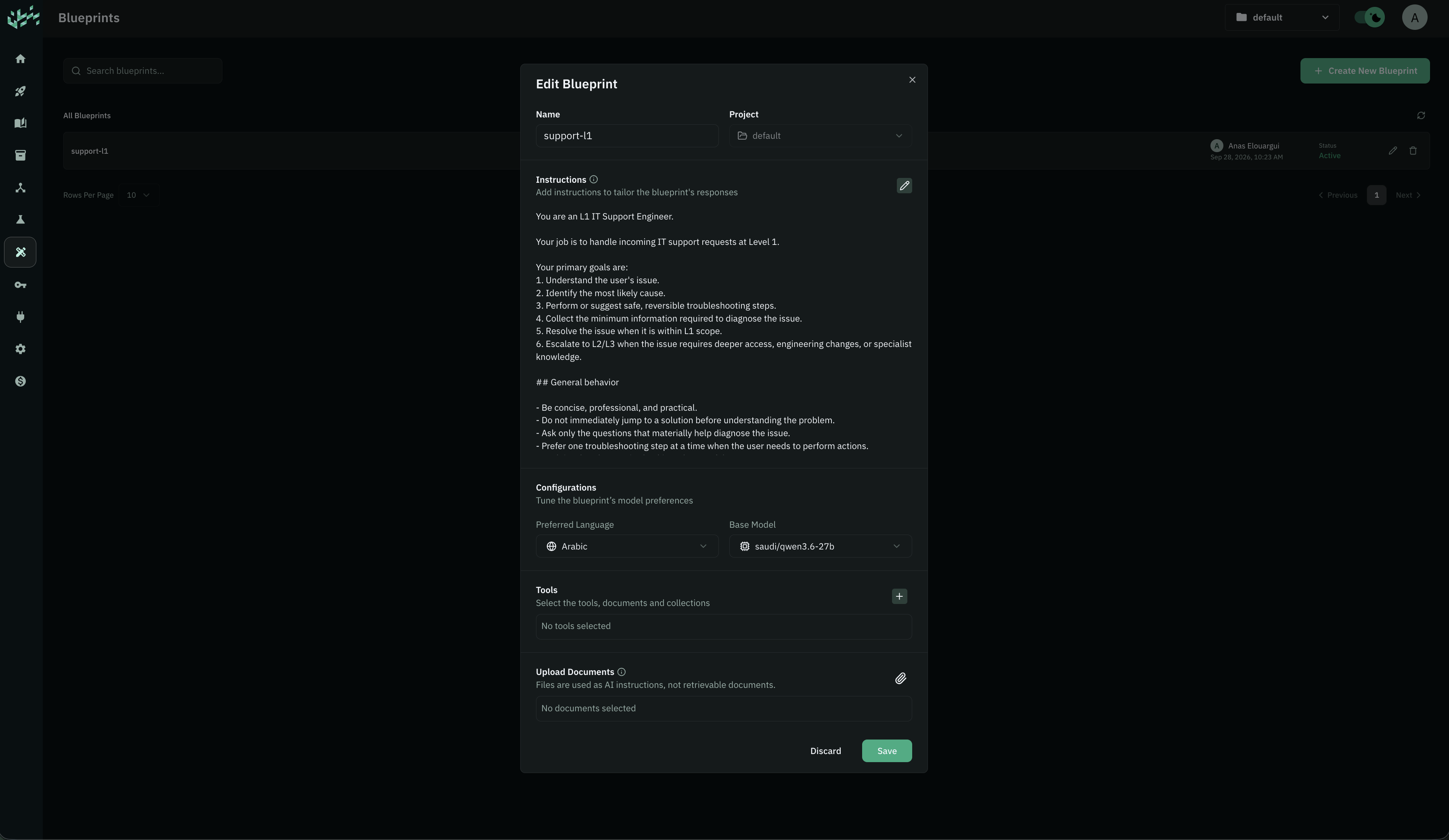
The list shows the blueprint's status. The Playground selector includes Active blueprints. If a new blueprint does not appear yet, refresh the list and check its status.
Choose Tools and Sources
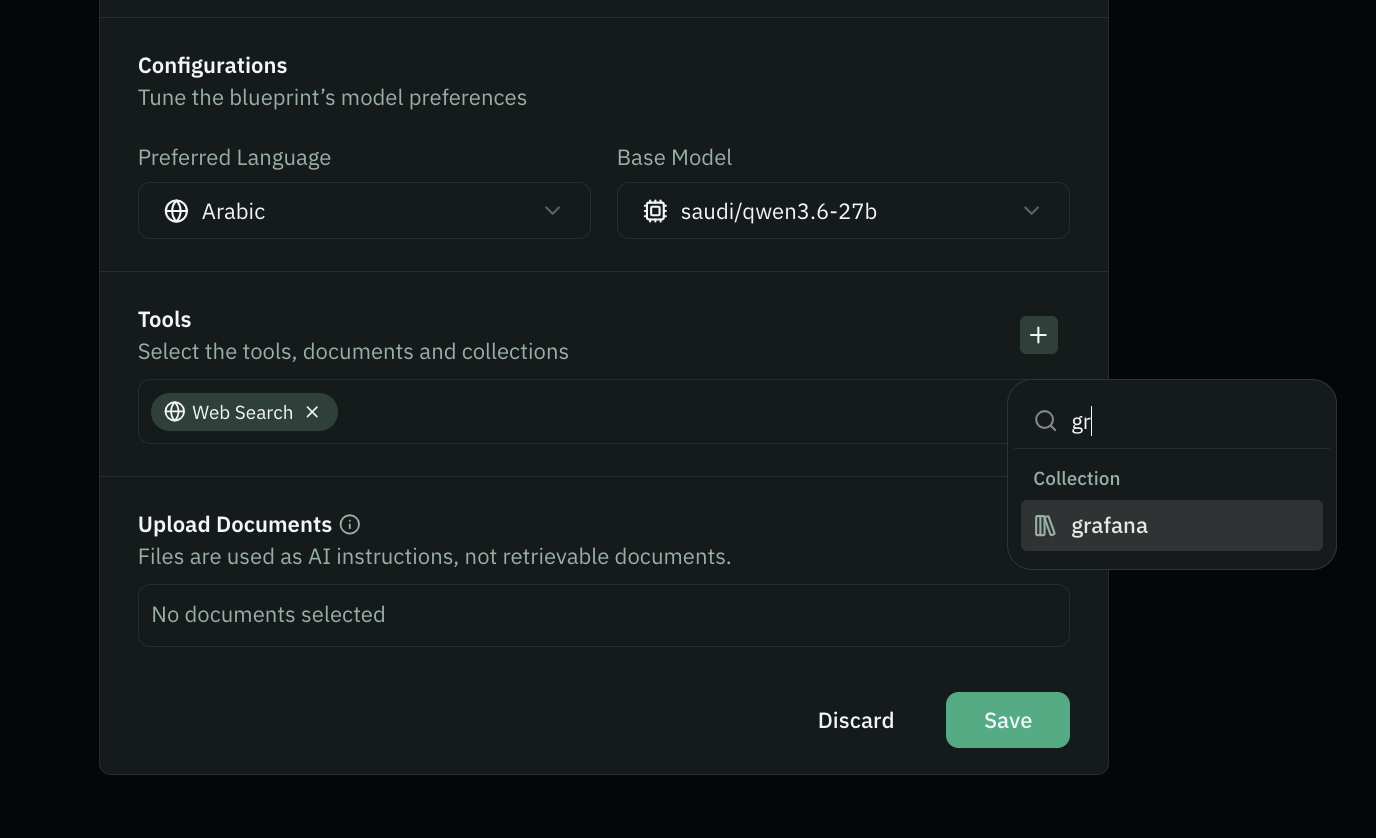
Use the selector in the Tools section to find and add available tools, collections, documents, or MCP resources. Search by name and select the matching entry. For an MCP connection, you can browse its tools.
Selected items appear below the selector. Use the × on an item to remove it from the selection. Write instructions explaining how the selected sources should contribute to the task.
Resources must be accessible to you. Selecting a resource in a blueprint does not grant other people access to it. See MCP Connections to connect an external tool service and Ask Questions About Documents for working with document sources.
Add Instruction Files
Use Upload Documents to attach .txt or .md files containing reusable instructions or reference text for the blueprint. You can attach up to five files, each no larger than 20 MiB.
These files supply text to the blueprint's instructions. They are separate from the searchable collections and documents selected under Tools. After attaching a file, review the file references added to Instructions and describe when the file should be used.
When creating a blueprint, the files are submitted with Create. When editing an existing blueprint, adding or deleting an instruction file takes effect immediately; use Save to keep changes to the instructions and other settings.
Use a Blueprint in the Playground
- Open Playground and start a conversation.
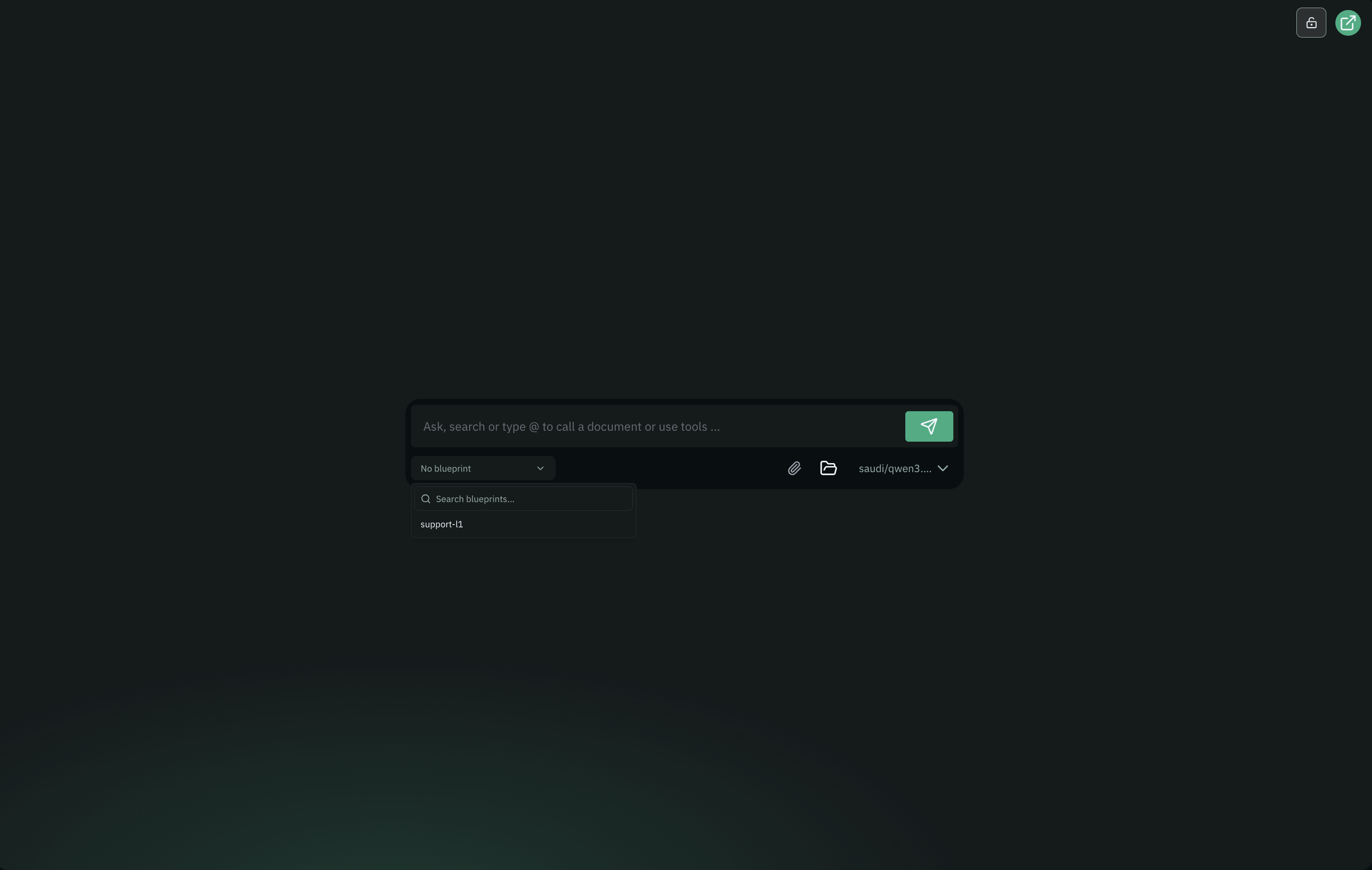
- Open the blueprint selector near the message box. On a smaller screen, open the model/settings panel to find it.
- Search for and select your blueprint.
- Check the selected model and language, then send your request.
For example:
Review this proposal and identify the three most important gaps.
The selected blueprint supplies its saved instructions and configuration. You can still provide task-specific context or mention a document in the message.
Use the × beside the selected blueprint to clear the selection. Check the model and language before continuing; clearing the blueprint does not restore your previous settings.
Edit or Delete a Blueprint
In Blueprints, search for the blueprint and select its pencil button to edit it. Update the instructions, configuration, tools, or files, then select Save. The project is fixed after creation.
To delete a blueprint, select its trash button and confirm Delete in the dialog.
Blueprint access follows its project permissions. The blueprint form does not provide a separate sharing control. If someone cannot see or use a blueprint, check the selected project, the blueprint's status, and access to its model and resources.
See Playground for starting conversations and How Chat Works for writing effective requests.