

Organization Settings
Open Settings → Organizations to see the organizations you belong to and your current workspace. Organization owners manage organization details and membership.
Switch Organizations
Select Switch To beside an organization. The Current Workspace section confirms where you are working. Check the project selector after switching so you are working with the intended team's resources.
You can also return to your Personal Workspace from this page.
Create an Organization
- Select Create Organization.
- Enter a Name and unique Slug. The slug uses lowercase letters, numbers, and hyphens, for example
acme-research. - Optionally enter a Description.
- Review Subscription and select an available plan. Use the details shown in the form to compare access and allowances.
- Select Continue.
- Follow Complete your organization setup. Copy the Session ID and provide it to the sales contact shown on the screen to complete payment and organization creation.
The setup screen provides a reference for your selected plan; reaching it does not mean the organization is active. Once setup is completed and verified, return to the organization list and select Switch To.
If the slug is already taken, choose another. If no plans load, use Retry when offered. Keep the session reference if you need help completing an existing setup.
Edit Organization Details
Open the organization's three-dot menu → Edit Organization. Update its name, slug, or description, then select Update. You need owner permissions to save these changes.
For branding options, see Organization White Labeling.
Add Members
An organization owner can add a member:
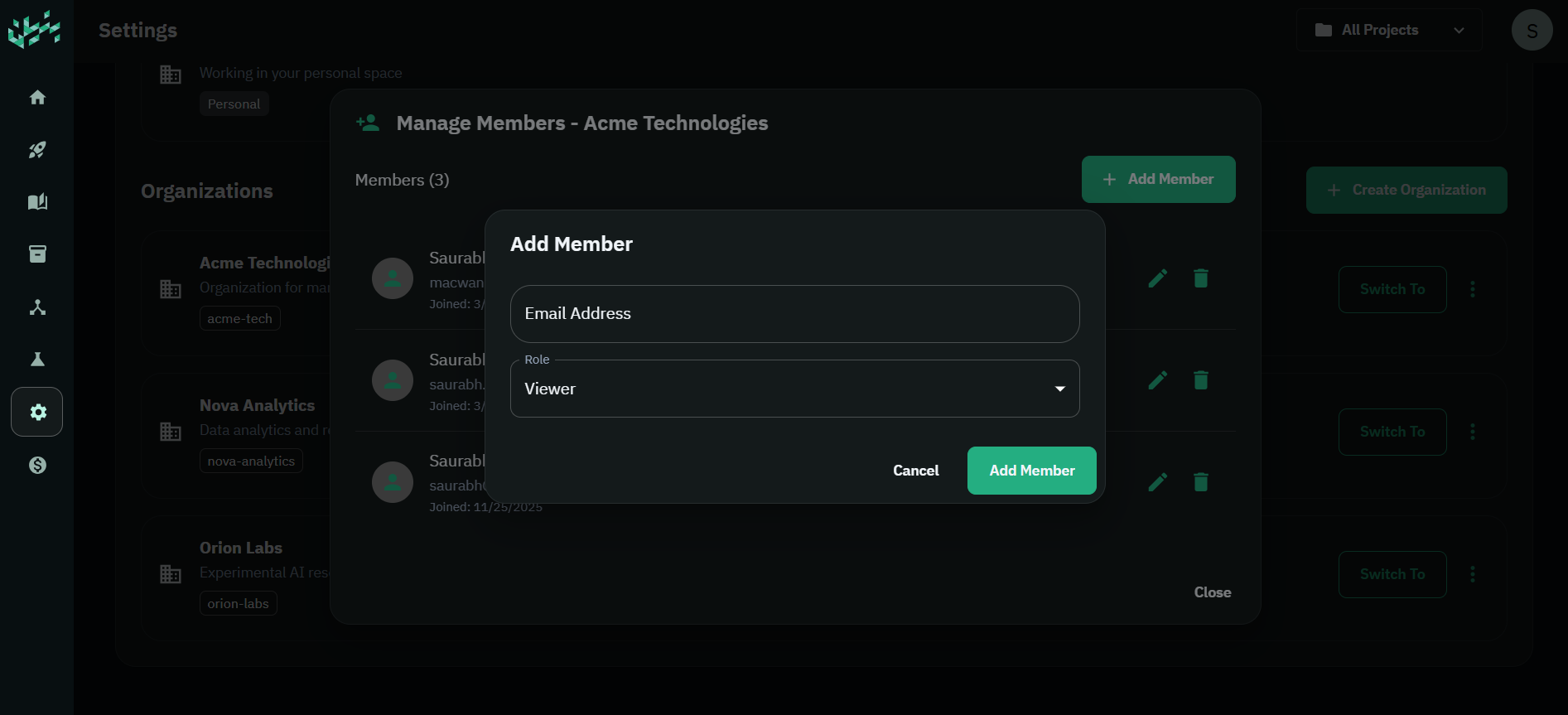
- Open the organization's three-dot menu → Manage Members.
- Select Add Member.
- Enter the person's Bunyan account email address.
- Select a Role and choose Add Member.
If Bunyan cannot find the user, check the email address and that their account exists and is active.
Organization Roles
| Role | Purpose |
|---|---|
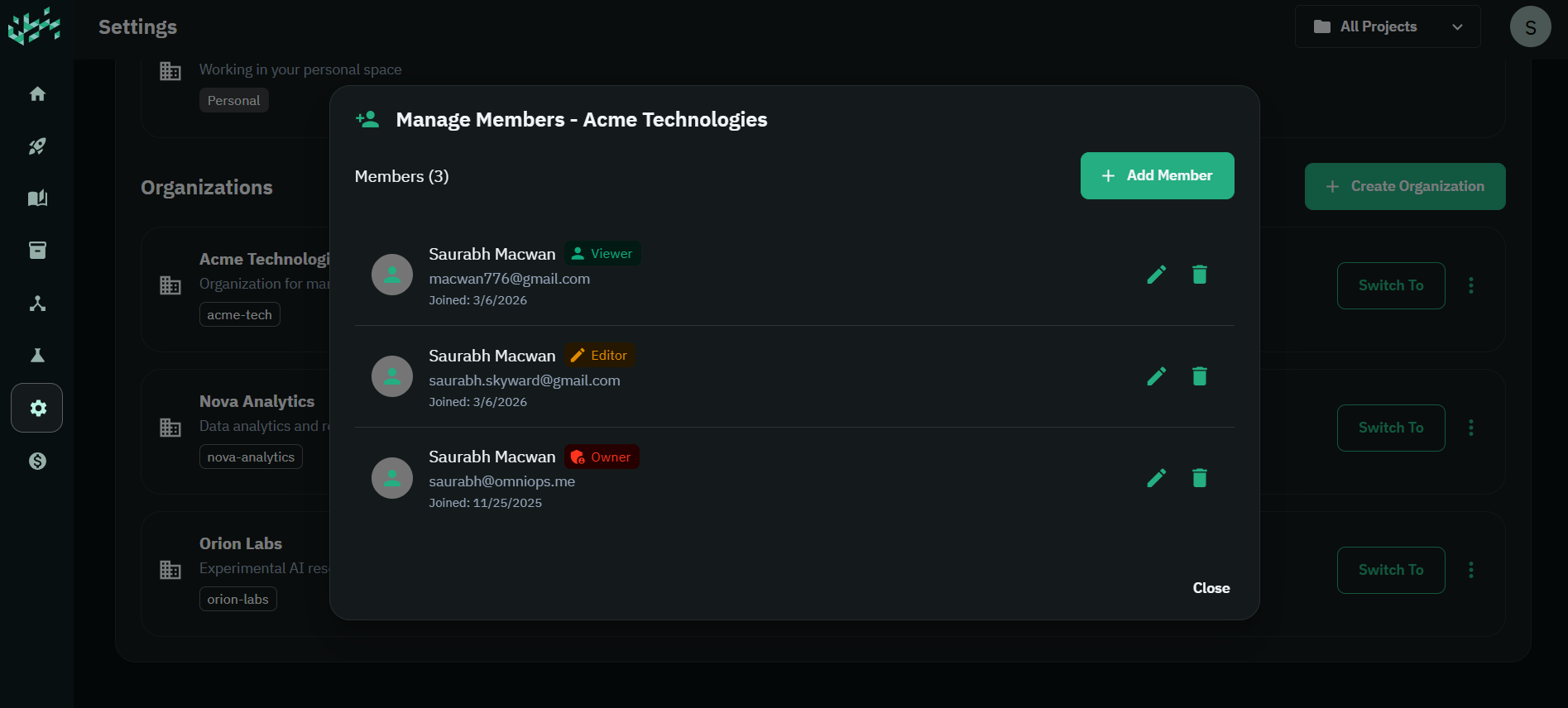
| Owner | Manage the organization and its membership. Assign this role to people responsible for administering the workspace. |
| Editor | Work with and modify resources where their project and resource access allows it. |
| Viewer | View and use resources available to them without granting organization-management permissions. |
These are organization roles. Projects also have their own access levels: Admin, Editor, and Viewer. Review project membership when setting up access to a team's work.
Change or Remove a Member
In Manage Members, select the member's pencil button to change their role and save. To remove someone, select the trash button and confirm.
An organization must retain an owner. Before removing an owner or leaving as the last owner, assign another suitable member the Owner role. Review the remaining owners before confirming changes.
Leave or Delete an Organization
To leave, open the organization's three-dot menu → Leave Organization and confirm. You lose your membership in that organization. The last owner cannot leave without another owner in place.
To delete an organization, an owner can select Delete Organization and confirm. This is permanent and affects the organization's resources and members. Review the workspace with your team before confirming deletion.
If Access Is Missing
- The organization is absent: ask an owner to check your membership and account email.
- You can see an action but cannot complete it: ask an owner to perform the change or review your role.
- A project or resource is missing: check the project selector and ask the project or resource owner to review access.
- A newly requested organization is absent: check whether the setup and activation steps have been completed using your session reference.