

Organization White Labeling
Customize your organization's logos, colors, and default language in Bunyan.
Use Theme Settings to customize your organization's logos and interface colors. You can also choose the organization's default language and review changes in a preview before saving.
Before You Start
You must be an Organization Owner to use this editor. Update Theme is not available for inference-only organizations. If the option is missing, check your organization role and ask your administrator about the organization's available features.
Branding belongs to an organization and applies while that workspace is selected. Personal workspaces and organizations without a custom theme use the platform's default branding.
Open Theme Settings
- Open Settings → Organizations.
- Find the organization you want to customize.
- Open its three-dot menu (⋮) and select Update Theme.
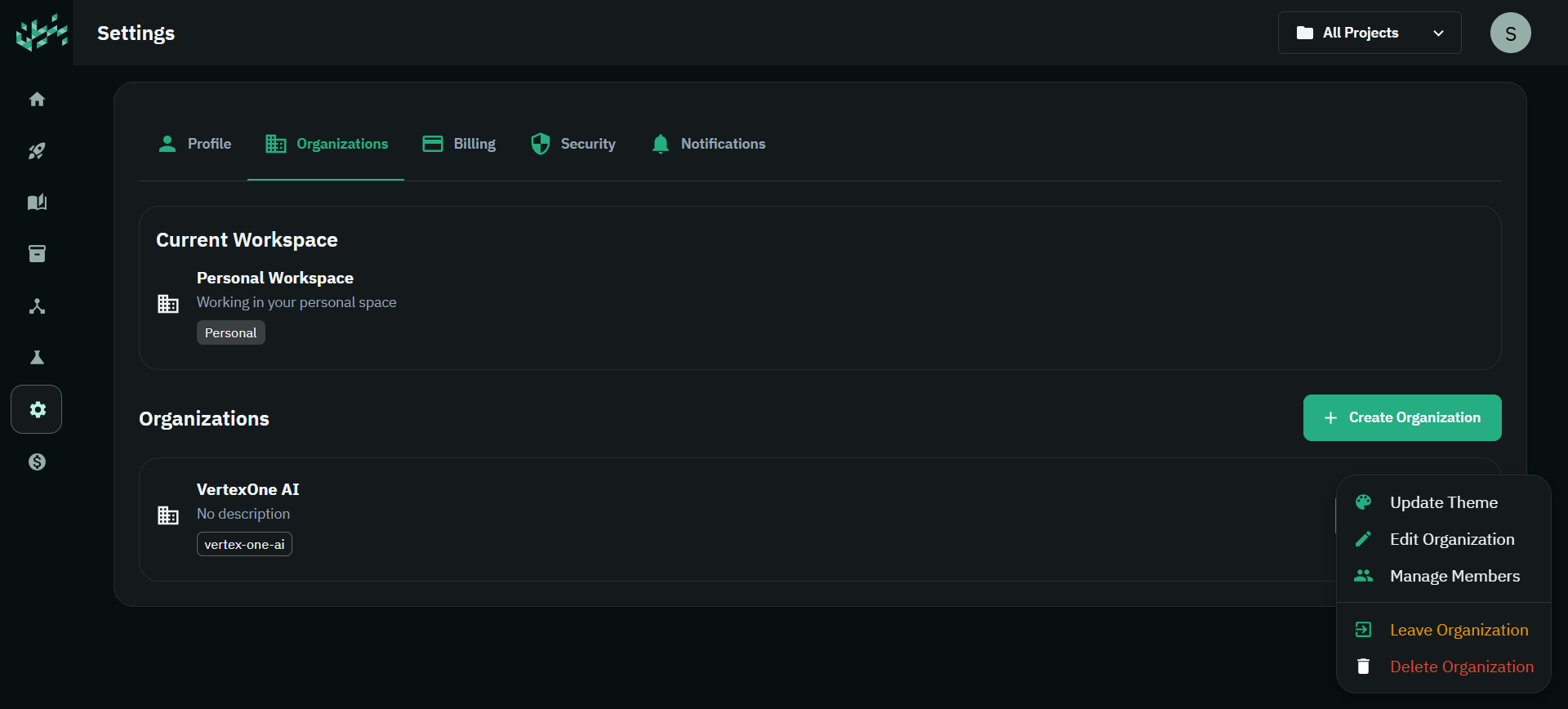
The editor shows customization controls and a preview of common interface elements.
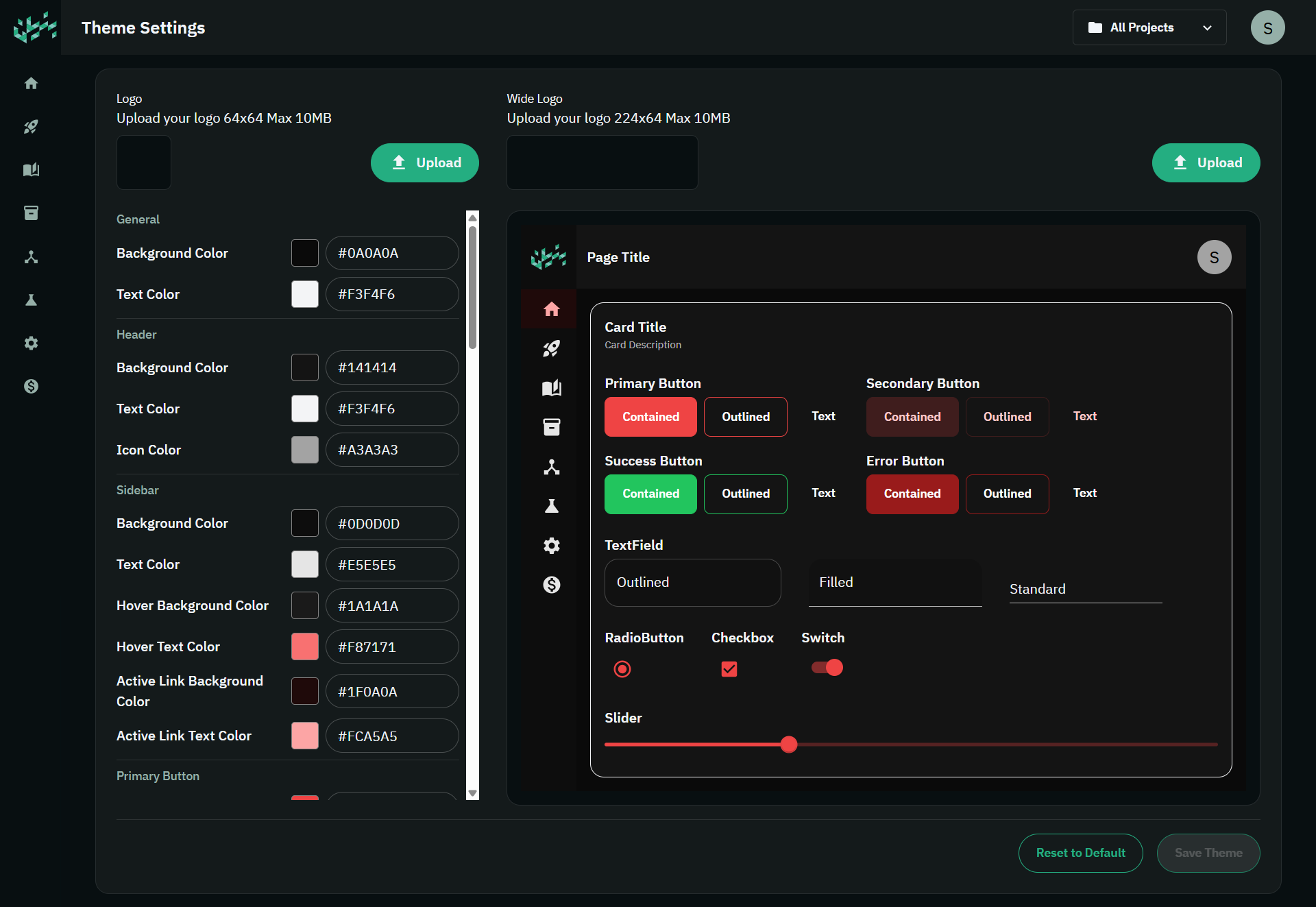
Customize Your Theme
Light and Dark Modes
Use the editor's Light Mode / Dark Mode switch to choose which appearance you are editing. Logos and colors have separate values for each mode. Review both so your branding remains readable when members change their display preference.
Logo Settings
Upload a Logo for compact placements and a Wide Logo for wider placements. Choose the light or dark mode first, then upload the appropriate versions.
The file picker accepts PNG, JPG/JPEG, and SVG files, up to 10 MiB each (shown as 10 MB in the interface). Uploads are saved when you select Save Theme.
Color Settings
Adjust the controls for the areas you want to customize, including:
- General background and text, header, and sidebar.
- Primary, secondary, success, and error buttons.
- Inputs, cards, and selection controls.
- Playground appearance.
Use the preview to check text contrast, button states, borders, and logo visibility in each mode. The preview helps you review edits before applying them.
Organization Language
Use Language to choose English or Arabic as the organization's default language. This is an organization setting; it is saved with Save Theme.
Saving Changes
- Review the preview in both light and dark modes.
- Select Save Theme and wait for the success message.
- Switch to the organization if it is not already your active workspace, then check the result in Bunyan.
The button is disabled when there are no changes or a visible field has an invalid value. Check any field errors if you cannot save.
Saving updates the theme for the organization. If it is your active workspace, the saved theme is applied to your current session. Other members' open sessions may not update immediately; refresh the page if the previous branding remains visible.
Reset to Default
Select the light or dark mode you want to reset, then choose Reset to Default. For an existing custom theme, this immediately resets the selected mode's saved customization; it is not just a preview change. Check the result before making further edits.
Switching Between Workspaces
- Open Settings → Organizations.
- Select Switch To beside the organization you want to use.
- Check that its logo and colors appear once the workspace loads.
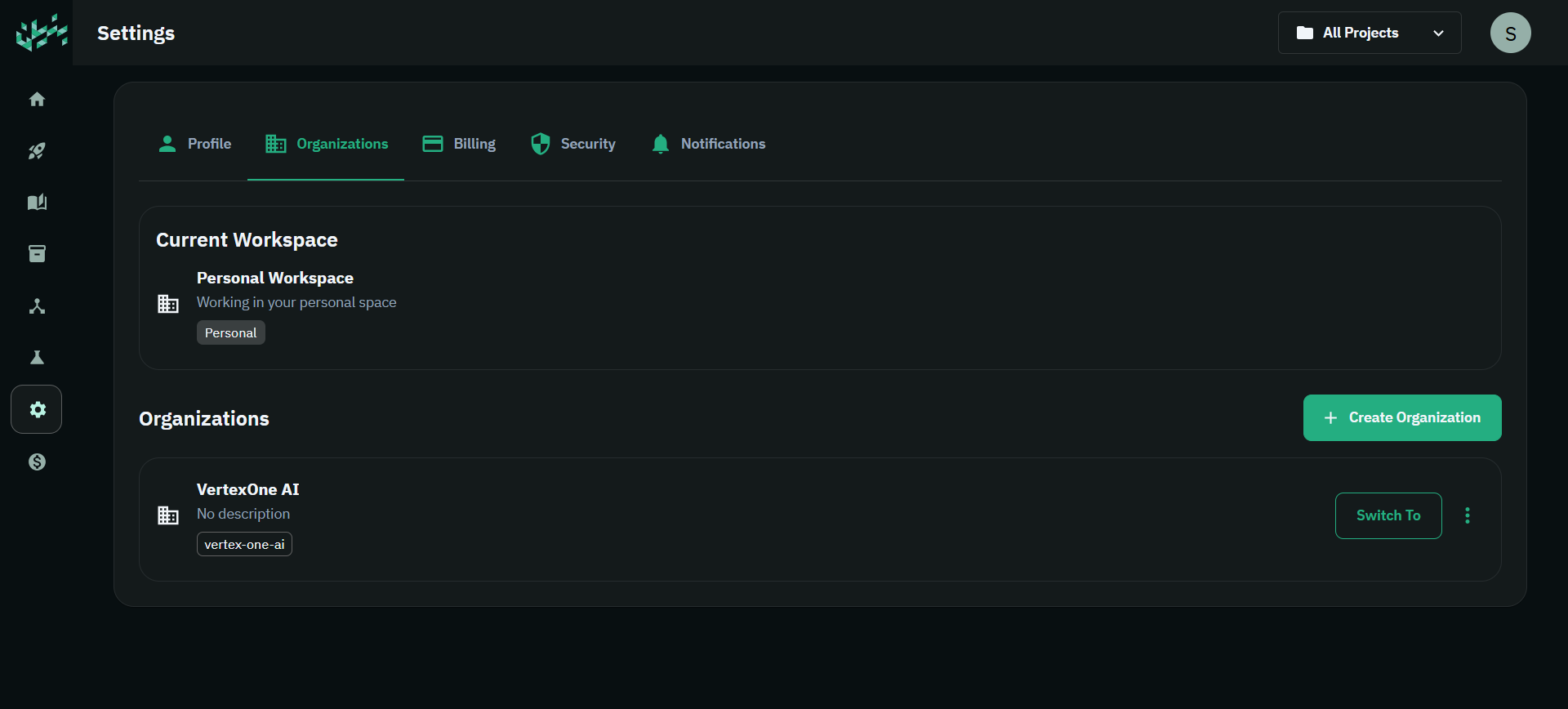
Switching organizations loads the selected organization's theme. Returning to your personal workspace restores the platform's default branding.
For workspace membership and access, see Organization Settings.