

Build with BunyanWorkflows & Automation
Debug Workflow Executions
Use Runs to review workflow execution status, inspect step inputs and outputs, and diagnose failures. Execution details may become unavailable after the configured retention period.
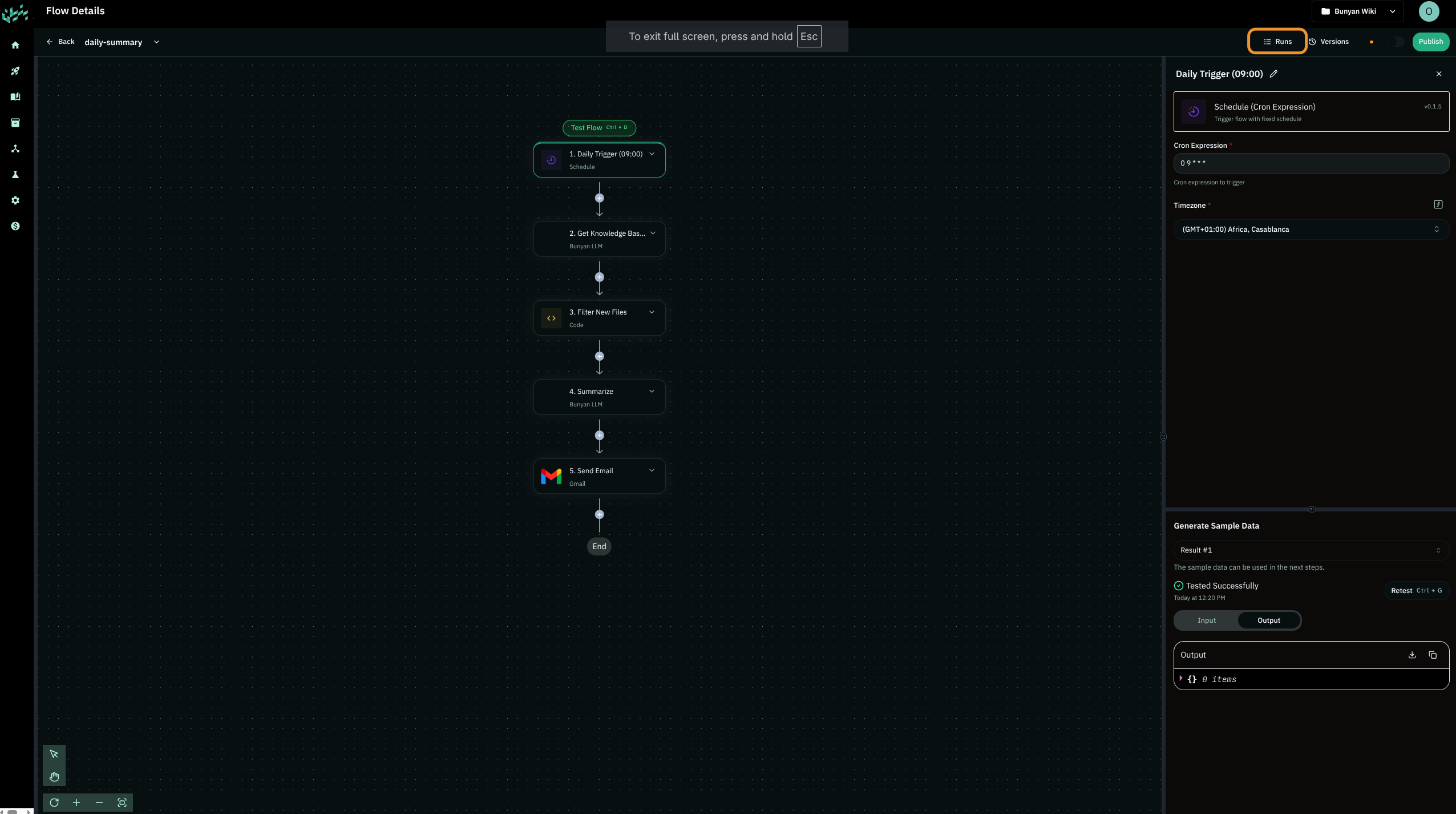
View run history
- Open a workflow.
- Click Runs.
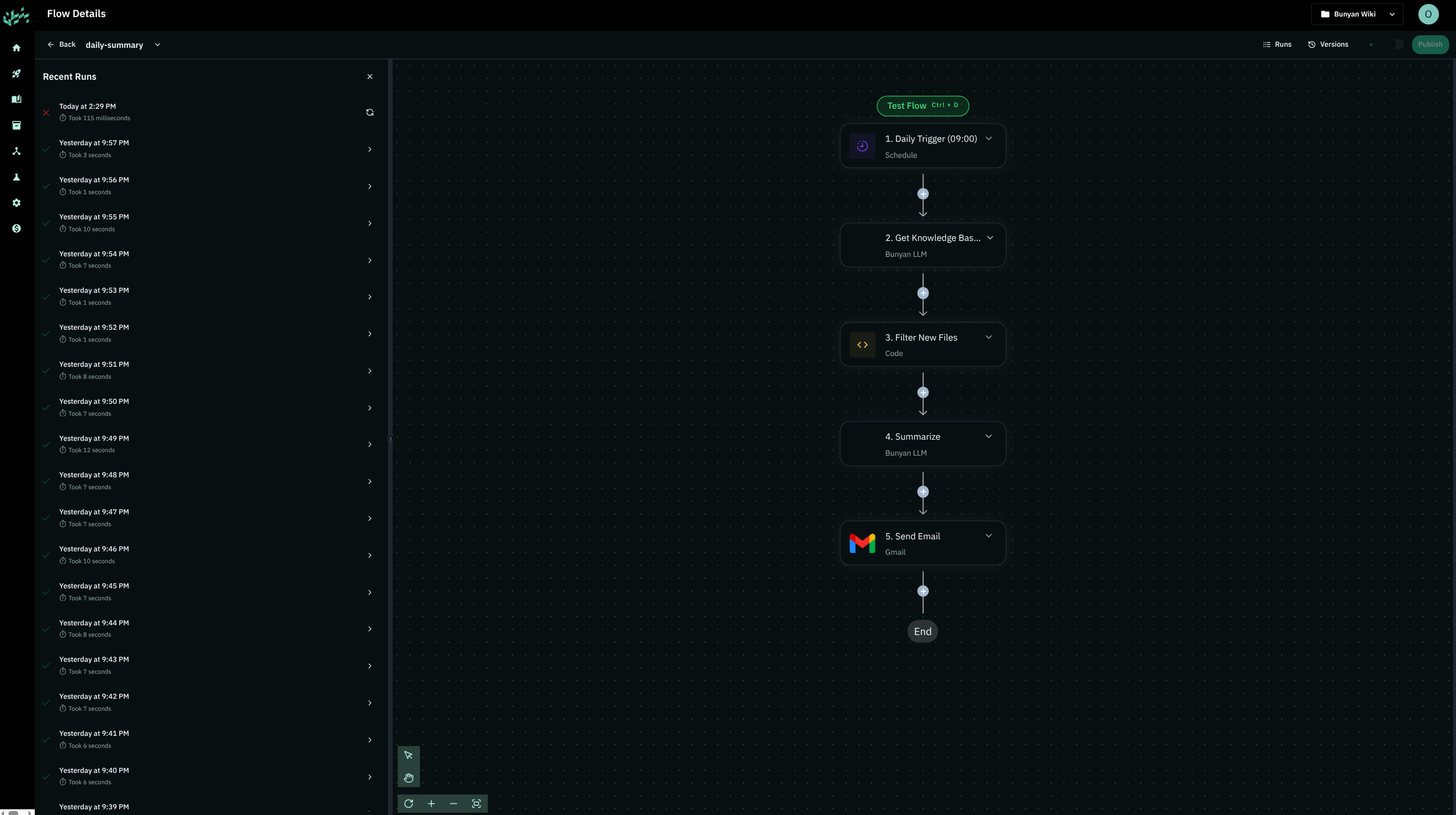
This shows the run history, including status (such as successful, failed, or running) and execution duration.
Inspect step logs
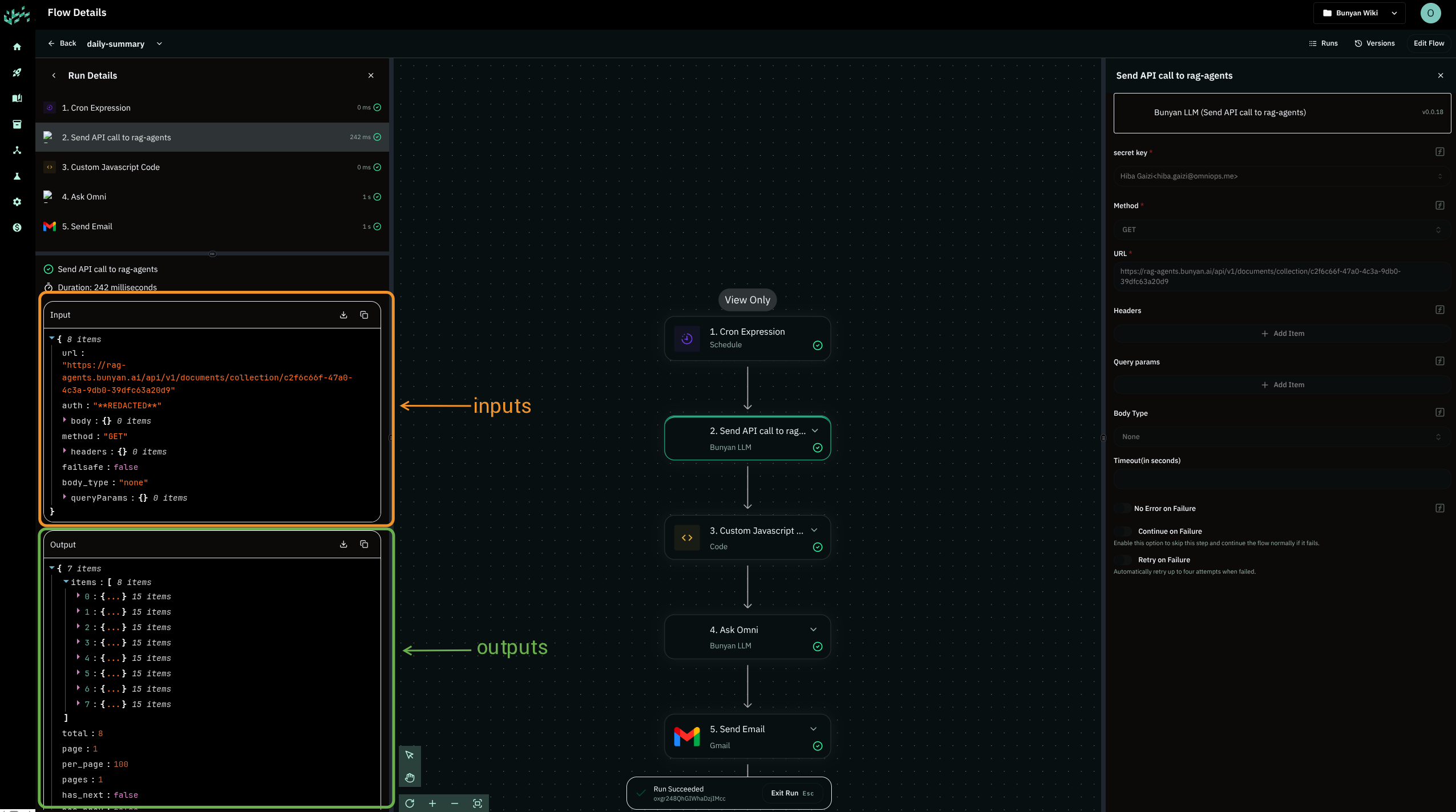
Select a run, then click a step to view its Input and Output. Errors appear in Output. Some agent steps also have a Timeline view.
Successful step
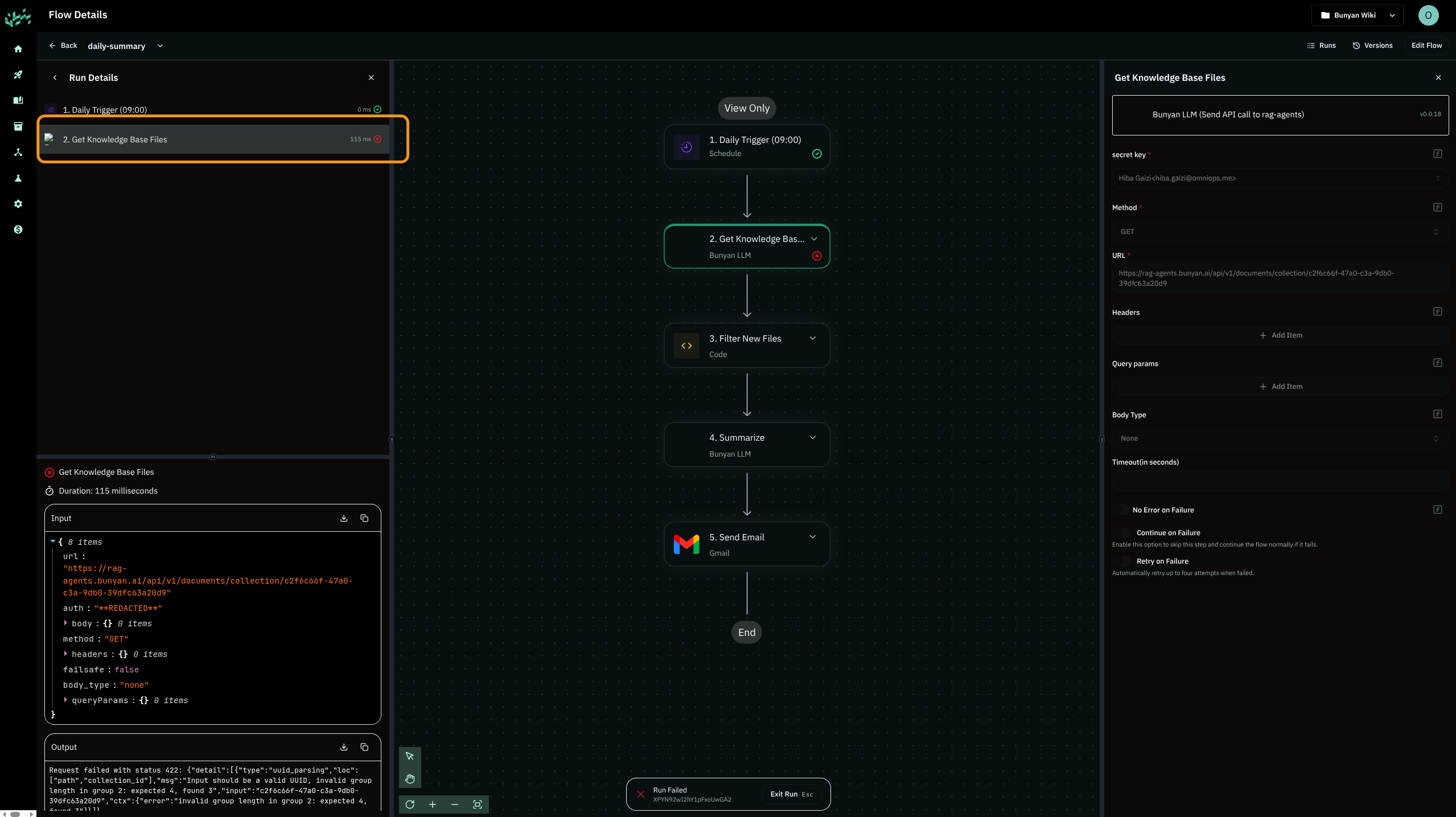
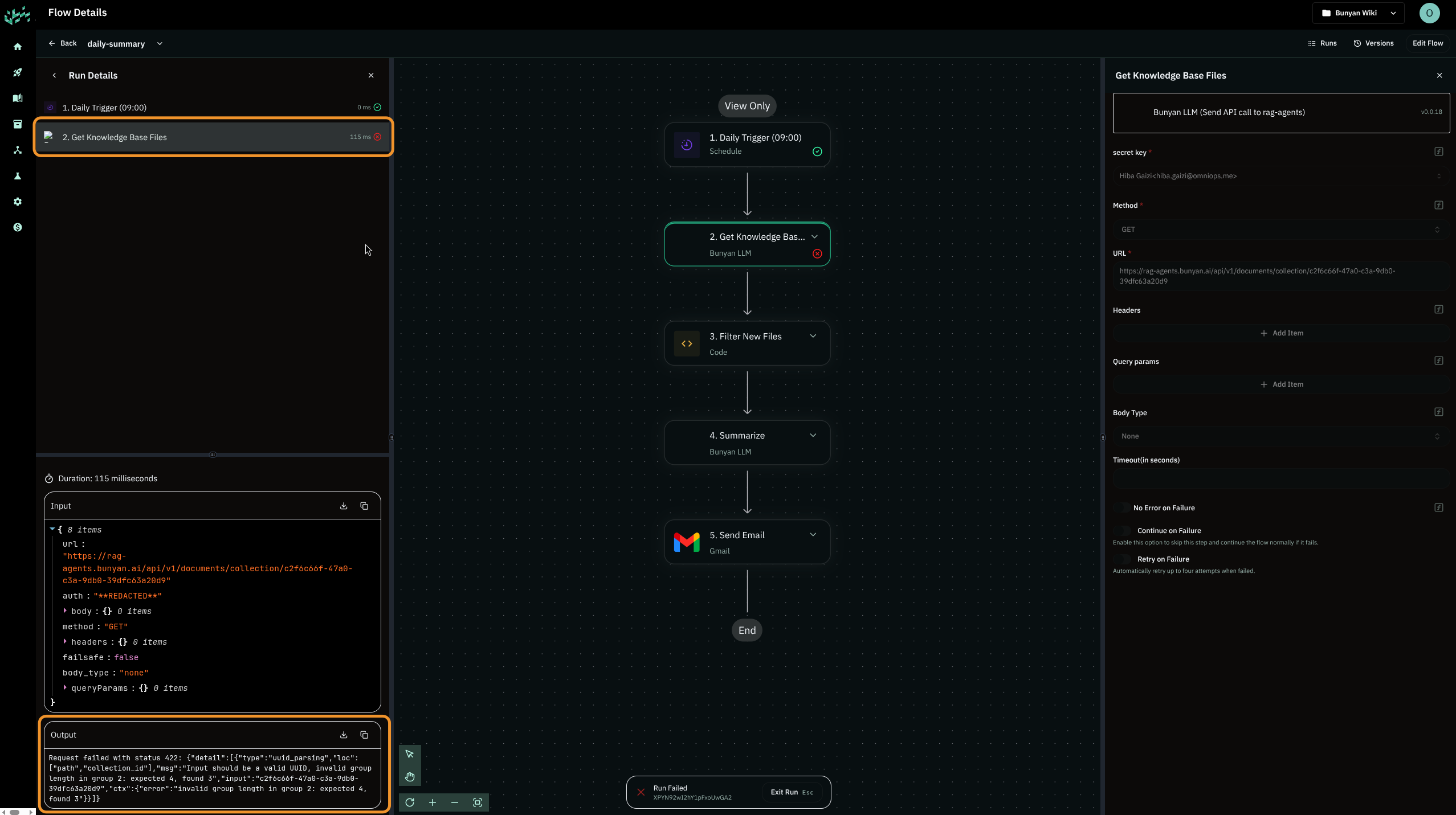
Failed step
In a failed run, the failing step is shown in the run details. Check Output for the error and compare Input with the values the action expects.
Troubleshoot a Failed Run
- Connection or authorization error: check the connection selected in the failing action and reconnect it if needed.
- Missing or unexpected input: inspect the previous step’s output and review the data-selector mapping.
- A later step did not run: inspect the earlier failed step or the branch that was taken.
- No scheduled run appears: confirm the flow is published and enabled, then check the trigger’s schedule and timezone.
- Execution details are unavailable: check the message shown in the run view; older details may have expired.
After correcting the flow, test the affected step and review the result before publishing. Testing or rerunning actions can repeat external effects, such as sending another email.